
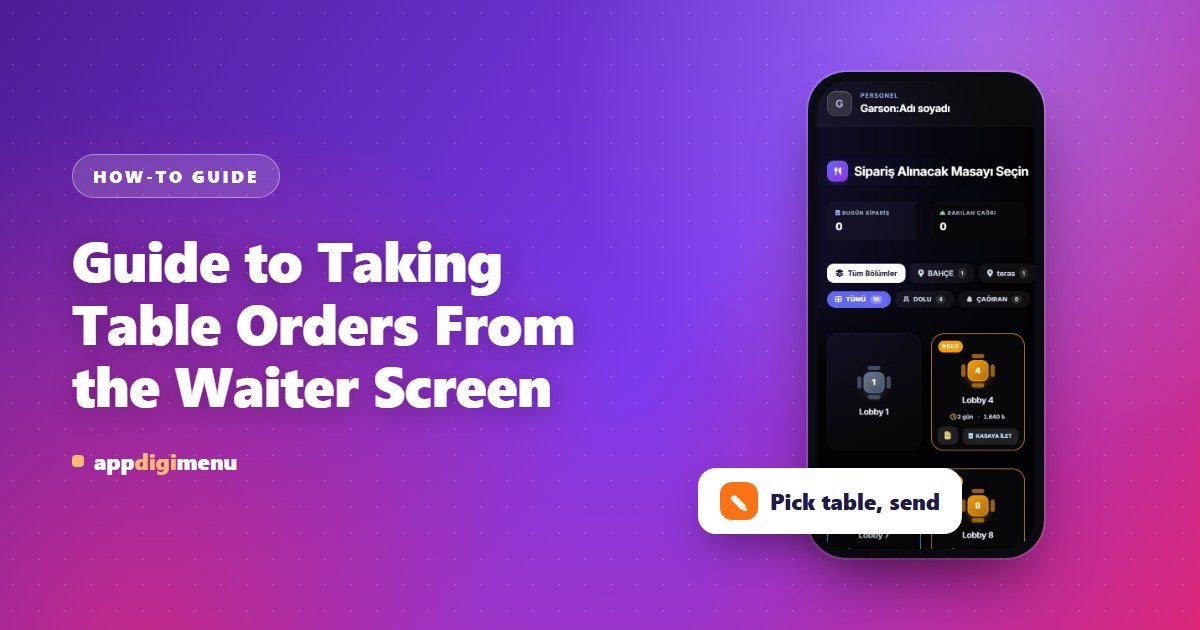
Orders written on paper get forgotten, misread or reach the kitchen late. With the waiter ordering system the waiter enters the order straight into the system from a phone or tablet, and it lands on the kitchen screen at the same moment.
How it works
The waiter opens their screen, picks the table from "Select the Table to Take an Order", adds items from the menu and sends the order. Orders entered by the waiter skip the approval step and go straight to the kitchen.
Setup
- Turn on the Waiter Ordering System. In Restaurant Settings, switch on "Waiter Ordering System".
- Add your waiters. On the Waiters page, enter a name and a 6-digit "Login PIN Code" for each waiter and press "Add Waiter".
- Share the login link. Send the "Secret Login Link" on that page to your waiters; each signs in with their own PIN. If the link gets into the wrong hands, renew it and the old link stops working immediately.
- Optionally restrict the network. Enter your venue's internet address under "Allowed IP Addresses" and the waiter screen can only be opened from your venue's network. Leave it empty to skip the IP check.
Two ways to work
- Mixed: Guests order via QR and waiters from their own screen; both meet on the same kitchen screen.
- Waiter only: Switch off "Live Panel Ordering". Guests can browse the menu but cannot order; orders are entered by the waiter (and the cashier).
What else is on the waiter screen?
- Table calls and bill requests reach the waiter instantly.
- The waiter's active orders are listed with their status.
- If the Cashier Module is off, the waiter closes the table's bill by choosing Cash or Card.