
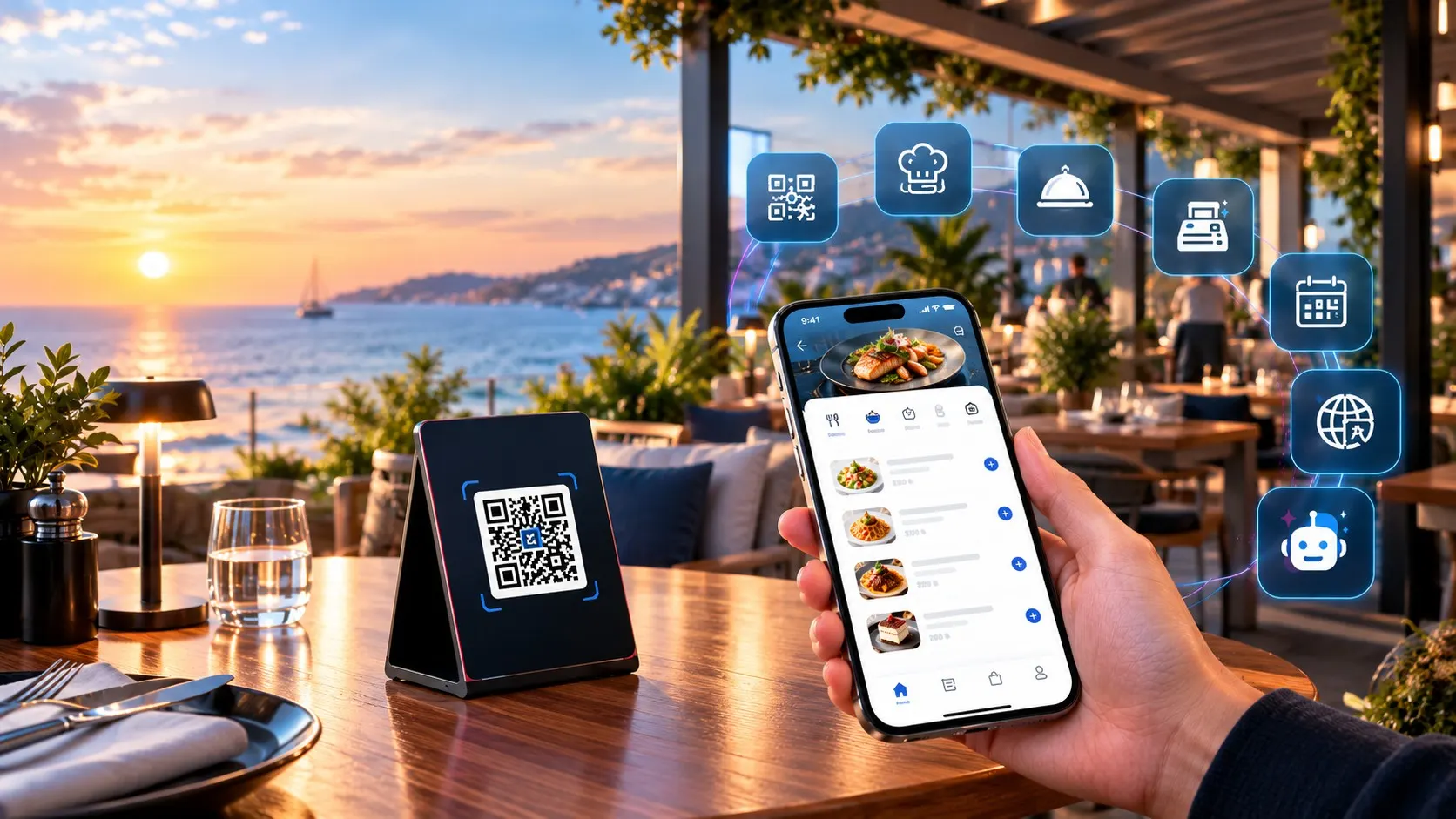
QR Menu
Guests view your menu on their phones but do not order themselves.
- Menu with photos in 6 languages
- Allergen and diet filters
- Waiter call (optional)
Your customers' menu, your business's technology. Fast on mobile, in 6 languages, AI-powered; designed for cafés, restaurants, bars, hotels and chains.
From QR to order, kitchen to till, reservation to report — your whole restaurant runs itself from one panel. Staff run less, tables turn faster, revenue grows.
Organise categories and products with ease; add options, allergens, calories and preparation time.
Calories and prep time on every item; 10 allergen types, vegan and vegetarian tags. Guests can hide items with an allergen.
Your menu in 6 languages; guests choose theirs and you can switch off the ones you don't use.
Dynamic QR codes styled with your colours, logo and pattern — their destination can be changed later.
Upload or export all your products at once with an Excel file.
Show an announcement or promotion with an image when the menu opens; each visitor sees it once.
A dedicated QR for every table and room; orders are only accepted from guests who scan it. The QR session ends when the bill is closed; optional location check and waiter approval for new phones.
Orders land on the kitchen screen instantly; tickets print automatically or manually.
Cash and card payments, split bills, refunds, complimentary items and Z reports on one screen.
Room service via room QR, charge-to-room and items included in the board package.
Take orders via WhatsApp if you like, and notify waiters on WhatsApp when an order is ready.
Guests call a waiter or ask for the bill, water or napkins from the table; the waiter's screen alerts instantly.
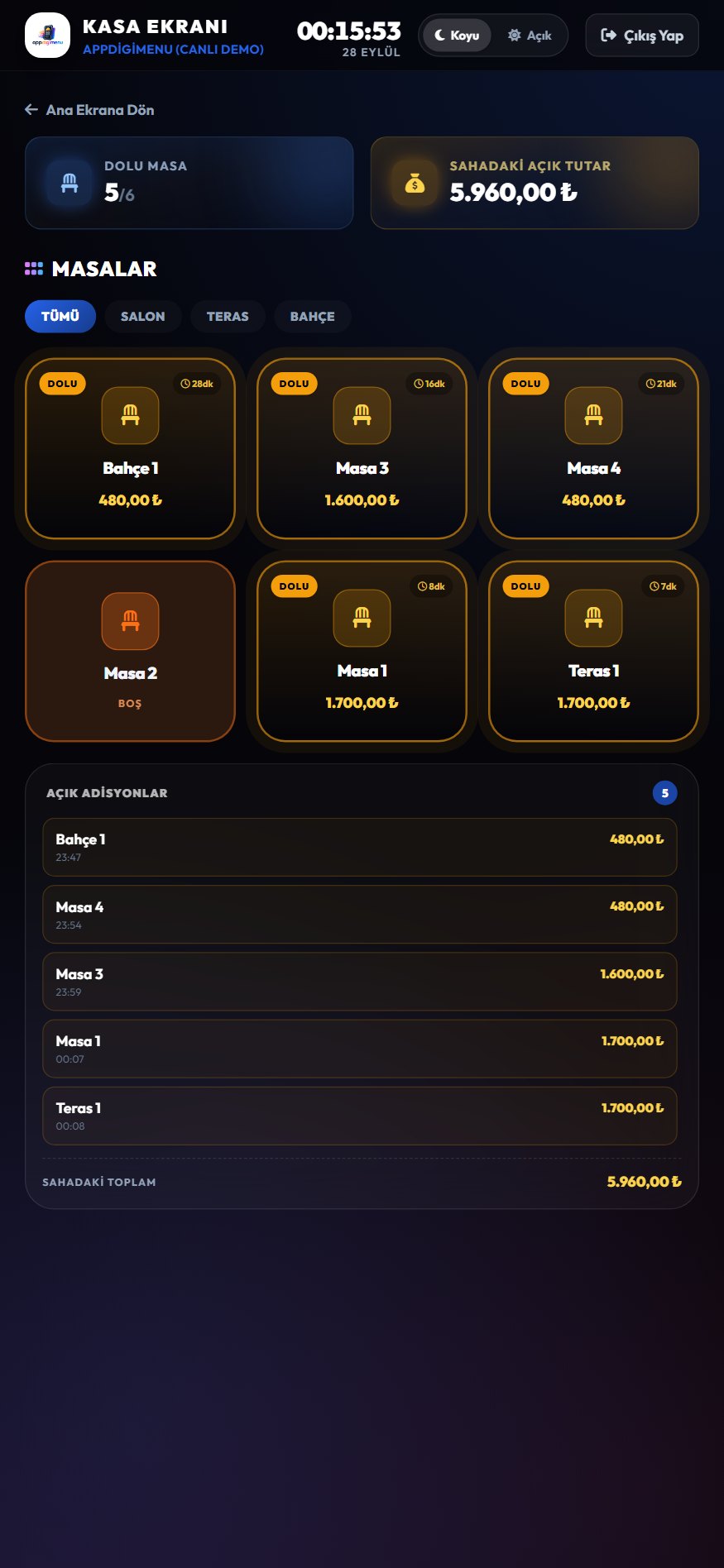
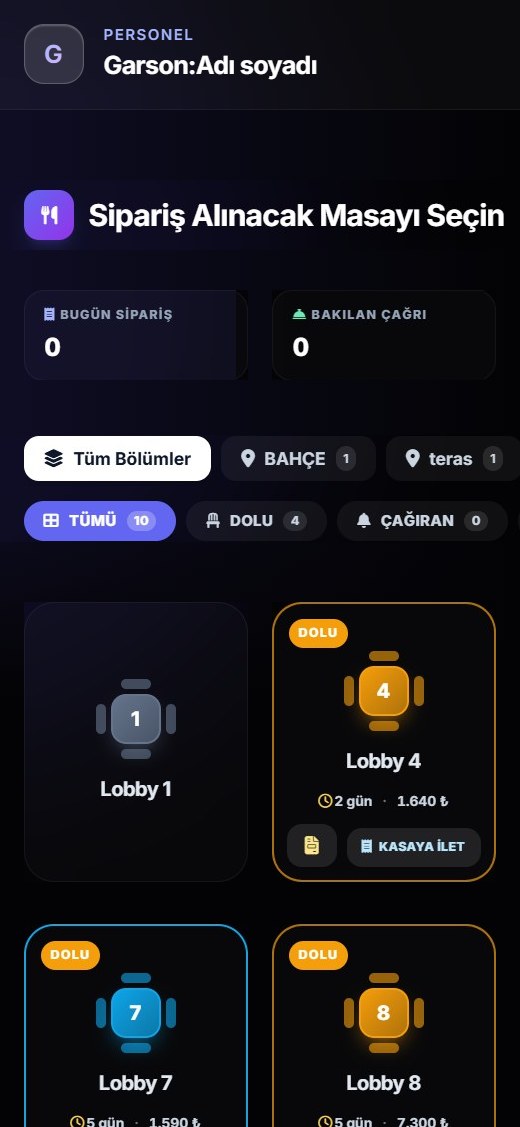
Occupied tables and open tabs by area (hall, terrace, garden) on one screen.
Take cash or card payments; the bill closes in a few taps.
Split a table’s bill and collect each part separately.
Every action is logged; suspicious ones appear on the Owner Screen.
The day’s revenue, payment types and closed bills in one report.
Orders from waiters and the QR menu are added to the tab at the till instantly.
A chat assistant that answers guests' allergen, diet and product questions using your menu information.
Collect service, taste, ambiance and price ratings; send happy guests to leave a Google review.
Guests book from the QR menu without signing up, with email verification, booked-slot display and fake-request protection.
Reservation emails are sent from your restaurant's own address (SMTP); if not set up, they are sent through the system.
Menu scans, busy hours, best sellers and waiter performance; with the new Owner Screen, follow revenue, your business and suspicious transactions live from your phone.
Send central menus and products to branches and set separate prices per branch.
Use your tables efficiently with live occupancy, table plan, late arrivals and heat-map statistics.
Two-step verification, access logs and consent management keep your account and guest data safe.
Add venue managers and staff; everyone only sees the screens they are allowed to, and actions are logged.
Each room has its own QR code; orders arrive with the room number.
Guests can choose to charge the order to their room.
Room-charge requests go to reception; approved orders go to the kitchen, rejected ones are cancelled.
Orders can only be placed by scanning the QR code in the room.
International guests read the menu and order in their own language (6 languages).
Menus and prices for restaurants, bars and branches from one central panel.
Revenue, order count and average bill, compared with yesterday and the same day last week.
Occupied tables, open bills, orders in the kitchen and ready to serve, waiter calls — live.
Reopened bills, payments changed afterwards, high discounts, refunds, complimentary items and late-night cancellations.
A notification on your phone for suspicious transactions and when the revenue target is hit.
The daily summary and weekly/monthly PDF reports arrive in your inbox.
Your partner or manager watches with their own PIN; view only, no changes.
The assistant only uses your menu information and the answers you add; you decide what it tells your guests.
Answers allergen, diet, product and venue questions from your menu information.
You add frequent questions, their keywords and answers for each language; the assistant replies to guests with them.
See the most asked and unanswered questions; improve the assistant by adding new answers.
Guests choose party size, day and time in the chat; the assistant only offers available times and books a table that fits the group.
Digi
Online · menu assistant
As soon as they scan the QR code, your guests get a fast, modern menu in the language they choose.
Menu in 6 languages
Turkish, English, German, Russian, Italian and Arabic; guests tap a flag to choose.
Calorie, allergen and diet info
Every item shows its calories and prep time; items with allergens can be filtered out, vegan and vegetarian items are tagged.
Search, favourites, sorting
Guests search items, mark favourites and sort by price or popularity.
Order and call a waiter from the table
Guests who scan the QR can order, call a waiter or ask for the bill.
From the QR code to the till, every step runs in one system; nobody carries paper and everyone sees it at the same time.
Step 1
The menu opens from the table code in seconds, no app download needed.
Step 2
Picks items from a multilingual menu with photos and orders from the table in one tap.
Step 3
The order lands on the waiter's screen; the waiter approves it or rejects and blocks a suspicious request.
Step 4
The approved order appears on the kitchen screen: new, preparing, ready to serve.
Step 5
At the till it is paid by cash or card; the Z report is ready at the end of the day. If you don't use the Cashier module, the waiter closes the bill on their own screen by choosing Cash or Card.
Not every business needs a cashier screen. Switch modules on or off in the restaurant settings with one click, and move to the full system whenever you like.
Guests view your menu on their phones but do not order themselves.
You still take payment on your own POS; the menu, ordering and tracking run in this system. Orders go from the table to the waiter and the kitchen instantly.
Ordering, kitchen and till work in one system.
Even if the guest does not order via QR, the waiter picks the table on a tablet or phone and enters the order; it reaches the kitchen at once.
Whichever setup you choose, your menu, QR codes and data stay the same; switching needs no reinstallation.
Guests order or book by QR; the order lands in the kitchen instantly, the waiter follows the table, the till closes the bill and the panel shows occupancy — all in one connected system.
1
Menu Categories
The guest scans the QR and swipes through the categories.
2
Guest Menu
Featured dishes, filters and products with allergen info.
3
Online Reservations
Pick party size, day and time; full slots are shown and the request is verified by email.
4
Book with Digi
The assistant asks party size, day and time in the chat and takes the booking itself.
5
Kitchen Screen
Orders land instantly: new, preparing, ready to serve.
6
Waiter Screen
Table calls, order approval (incl. reject & block) and active orders on one screen.
7
Cashier Screen
Today's revenue with cash/card split, open tickets, discounts, complimentary items, refunds, bill splitting, takeaway and Z report on one screen.
8
Reservation Occupancy
Busiest hour, occupied tables by hour and the day's table plan.
Paper and PDF QR menus only show products. Here the menu works together with ordering, the kitchen and the till.
| Feature | Paper menu | PDF QR menu | Suggested MenuRobo |
|---|---|---|---|
| Price changes go live instantly | Reprint | Re-upload the file | |
| Multilingual menu (6 languages) | A separate file per language | Automatic language detection | |
| Ordering from the table | |||
| Calling the waiter, asking for the bill | |||
| Allergen, calorie and diet filters | Text only | Text only | Guests can filter |
| Hiding sold-out items instantly | |||
| Kitchen, waiter and cashier screens | |||
| Statistics on which items are viewed | |||
| Printing cost when the menu changes | Every time | None | None |
Guests book from the QR menu without signing up; you approve from one screen, assign a table and follow occupancy live.
Make a Reservation
Occupancy
Live12 / 16 tables
Reservation heatmap
Opens the menu with the table QR and picks the date, time and party size.
Clicks the link; only then does the request reach your panel.
Assign a table and add a note; the guest gets a confirmation email.
The table shows as "Reserved" at the cashier; the waiter marks "Arrived".
Menus and products you create centrally are sent to your branches; each branch shows its own prices, all managed from one panel.
Branch-Based Pricing
Separate prices per branch; central updates never overwrite branch prices.
Central Menu & Products
Create categories and products once and send them to every branch.
Chain Reports
Compare orders and revenue by branch on one screen.
Role-Based Access
Give venue managers and staff only the permissions they need.
No technical skills needed — you publish your menu yourself from the panel.
Choose your plan and enter your restaurant details; your panel opens once approved.
Enter categories and products one by one or bulk-upload them with Excel.
Download the table and room QR codes from the panel and print them.
Guests scan the QR, browse the menu and place orders.
Menu scans, busy hours, best sellers and waiter performance — all on one screen.
QR Performance
See how many scans turn into orders.
Busy Hours
Know when your kitchen gets busy.
Customer Satisfaction
Service, taste, ambiance and price ratings.
Even when you're away, follow revenue, the live status of your business and suspicious transactions on your phone. The Owner Screen only displays; it never changes anything.
Revenue, collections, products, staff and suspicious transactions in one file.
All branches on one screen
Pick a branch or view them all together.
Instant notifications
A notification on your phone for suspicious transactions and when the revenue target is hit.
End-of-day email
The daily summary and weekly/monthly PDF reports arrive in your inbox.
Personal PIN
Your partner or manager watches with their own PIN; view only, no changes.
Works like an app
Add it to your home screen and open it with one tap; no download needed.
Cash register tracking
With the Cashier Module you also see cash in/out and closing differences.
The customer places the order, the production kitchen makes it, a branch or courier delivers it. Every step is recorded and complies with food safety and KVKK rules.
The customer designs the cake from your private link and confirms with an email code; staff can also enter the order at the counter.
The delivery calendar shows full days and hours; urgent orders are flagged and deposits are recorded.
Chefs log in with a PIN; the production screen shows the queue, size, inscription and allergy warnings.
Once checked, the cake is packed with a QR label stuck on its box.
Branch or goods receiving staff accept it by scanning the box QR; the person who scanned is recorded.
The courier delivers using the delivery order, directions and a delivery photo; the customer follows along via the tracking link.
Food safety (HACCP)
KVKK and security
Customer communication
HQ and branches
The guest scans the QR in the room and orders; the waiter approves, the kitchen prepares and the order arrives at the room.
1
Scan the QR in the room
The hotel's menu opens; guests choose their own language.
2
Choose from the menu
Breakfast, meals and drinks; items included in the package show as free.
3
Send it to the room
The room number comes from the QR; the bill is charged to the room and package items are free.
4
The waiter approves
Optional: the order reaches the waiter first; the waiter approves it, or rejects and blocks the phone if no one is in the room.
5
Kitchen prepares, delivered to the room
The order appears on the kitchen screen with the room number and is served to the room.
Menus are reprinted every time a price, item or promotion changes. With a digital menu changes go live instantly; you print the QR cards only once.
Your yearly printing cost
₺13.500
For a small venue, print savings alone won't cover the plan; the real gain is in ordering, faster service and error-free bills.
Print savings only; the gain from faster service comes on top.
Switch to a digital menuTransparent pricing with no surprise costs. Plans that grow with you as your business grows.
+ KDV (%20) = ₺6.000,00
QR printing costs are not included
For restaurants and cafés without branches.
Optional add-on modules
Total with your selection
+ KDV (%20) = ₺16.800,00
QR printing costs are not included
For multi-location businesses managed centrally.
Optional add-on modules
Total with your selection
+ KDV (%20) = ₺20.400,00
QR printing costs are not included
For multi-branch businesses, hotels and chains.
Optional add-on modules
Total with your selection
+ KDV (%20) = ₺108.000,00
QR printing costs are not included
A separate plan for pastry shops and production kitchens: from order to production, from courier to delivery.
Optional add-on modules
Total with your selection
Quick answers to the questions on your mind.
Couldn't find what you were looking for?
Write to our team and we will help you right away.
Yes. Once you turn it on, guests send reservation requests from the QR menu without signing up. A request reaches your panel after the guest verifies their email and is final once you approve it. Full times show as "Full" in the menu; you follow reservations with the occupancy screen, table plan and statistics with a heatmap.
Yes. If you enter your own email account on the Email (SMTP) page in the panel, guests receive reservation emails from your address. If you do not, or if your account fails, emails are sent through the system and your guests still receive them.
No. You enter your categories and products in the panel or bulk-upload them with Excel; your table QR codes are created automatically.
No. Guests scan the QR code on the table with their phone camera and the menu opens in the browser; no app download or sign-up is needed.
No. Orders are only accepted from guests who scan the QR code on the table or in the room; even if the menu link is shared, no one can order from home. The QR session ends when the table's bill is closed. For extra security you can turn on the location check and waiter approval for new phones.
Orders placed by guests or waiters appear on the kitchen screen instantly with a sound alert. The ticket can be printed automatically, and the order status (preparing, ready) updates on every screen.
Guests call a waiter from the menu with one tap and can also ask for the bill, water, napkins or wet wipes. The request appears on the waiter screen instantly; when asking for the bill, guests can choose their waiter.
Six: Turkish, English, German, Russian, Italian and Arabic. You enter product texts for each language in the panel and can turn off languages you don't use.
The menu assistant answers guests' allergen, diet and product questions from your menu information; it shows you the questions it couldn't answer so you can add new answers.
Yes. Each room gets its own QR code and orders arrive with the room number. Guests can choose to "charge to room", and reception approves or rejects the request from the panel.
The digital infrastructure that takes your business forward: fast setup, secure ordering, real-time reports.
Tips and the latest news about digital menus, QR codes and restaurant management.
How-to Guides · 03.10.2026
No more waving and waiting: guests pick their waiter in the QR menu and call them, or ask for the bill, water, napkins or wet w...
Read article
How-to Guides · 03.10.2026
Open tickets are shown on tables by area and bills close on one screen; discounts, complimentary items, refunds, split bills an...
Read article
QR Menu · 03.10.2026
Café and bar menus change often and service must be fast. With a QR menu you update prices and items instantly, switch off sold...
Read article
QR Menu · 03.10.2026
A printed menu must be reprinted with every price change; a digital menu updates instantly. We compared both on cost, updates, ...
Read article
How-to Guides · 30.09.2026
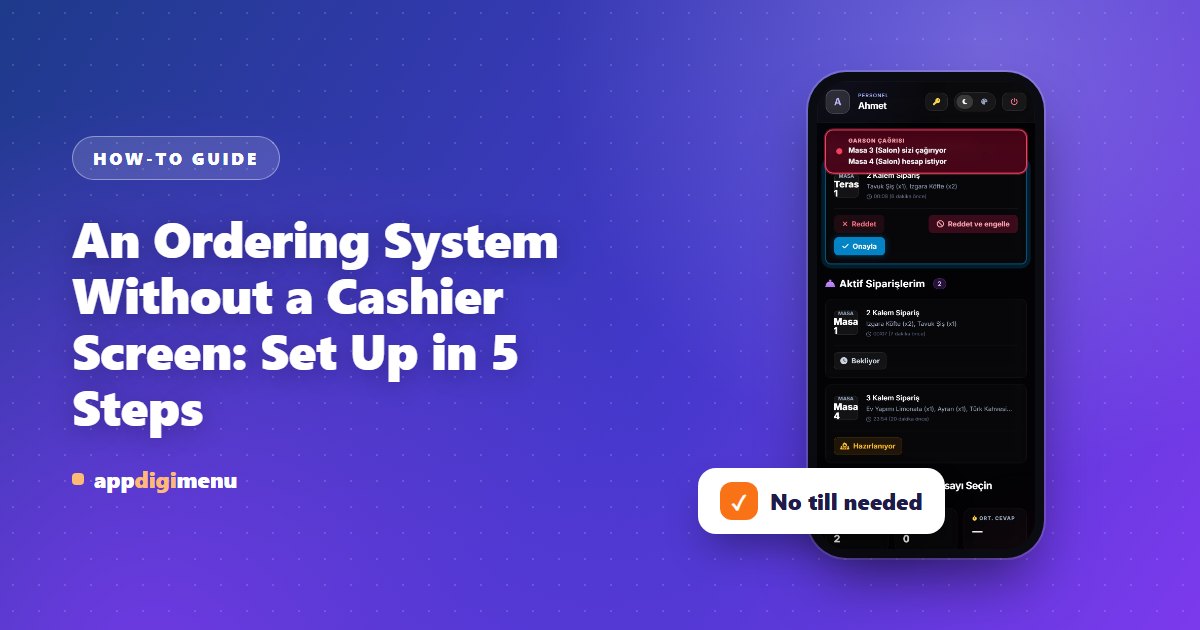
Already have a till, or simply do not need a cashier screen? Run the system without one: orders go from the table to the waiter...
Read article
How-to Guides · 30.09.2026
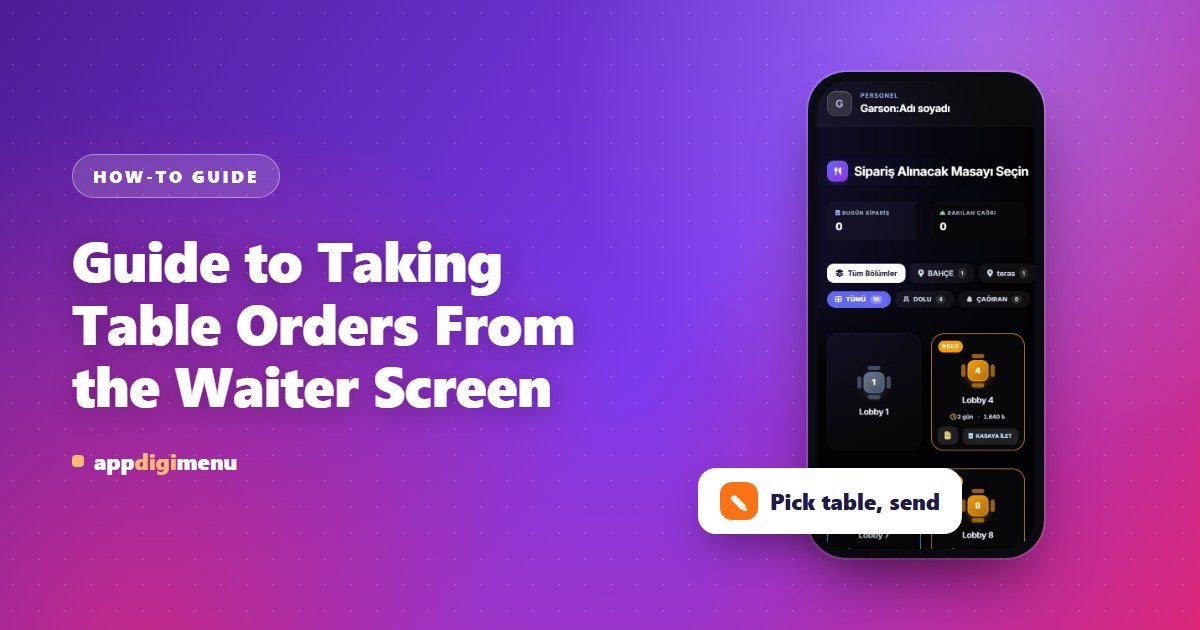
Guests do not have to order via QR: the waiter signs in with their own PIN, picks the table and adds items, and the order goes ...
Read articleWe care about your privacy
We use cookies to run this site, understand how it is used and show relevant ads. You decide which ones we can use. Learn more
Manage cookie preferences
Necessary cookies are always on because the site cannot work without them. The others are your choice, and you can change them anytime. Learn more
Necessary cookies
Always activeRequired for the site to work — sign-in, security, remembering your session and this cookie choice.
Functional cookies
Remember choices like language, region and currency, and enable the support chat.
Performance and analytics
Help us see how the site is used so we can improve it. Includes product analytics and device detection.
Targeting and advertising
Measure campaigns and show you more relevant ads on this site and others.